The short answer
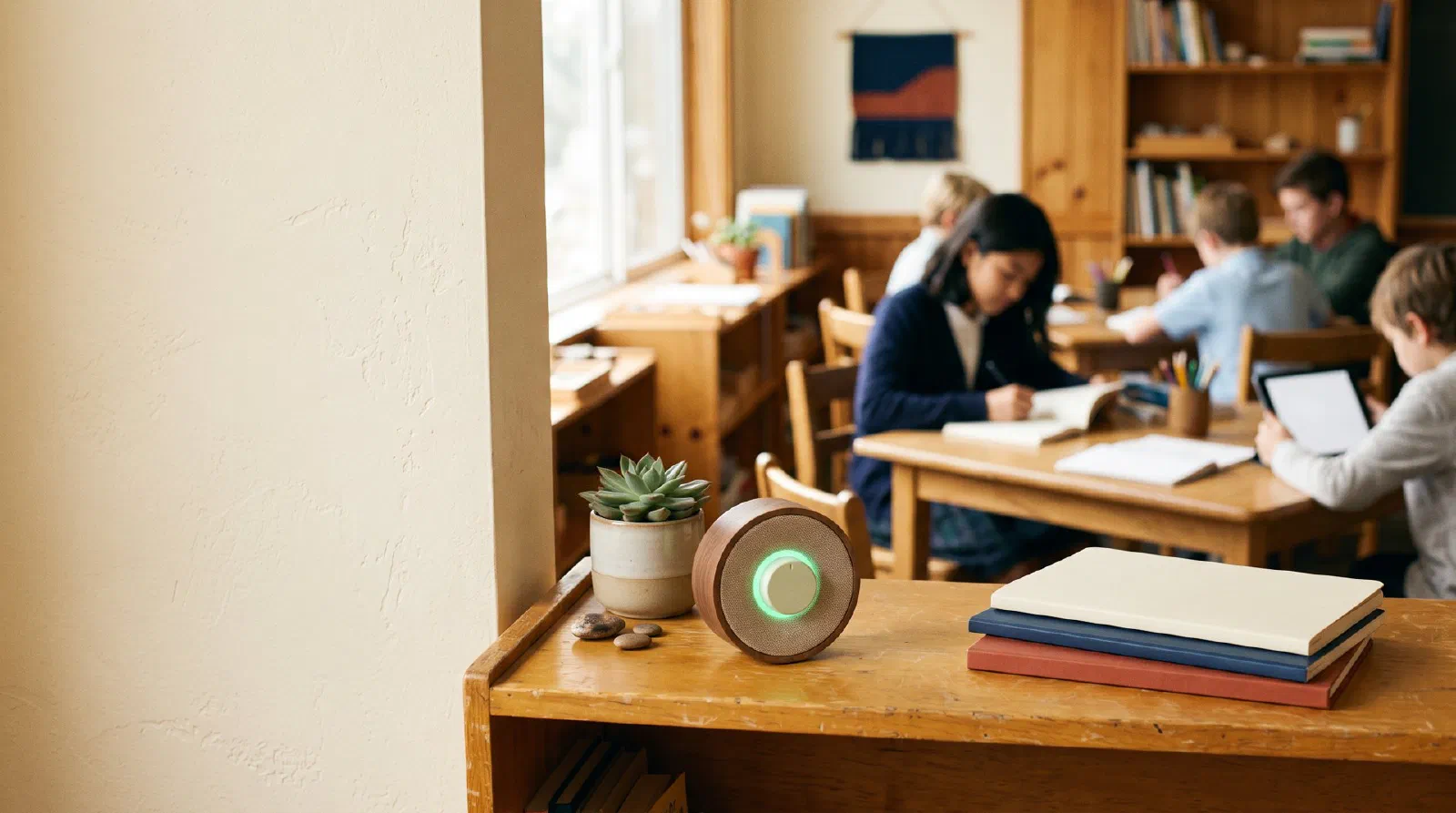
Press Start listening, allow the microphone, and the bar shows the room’s loudness as a relative level from 0 to 100. Below half your limit the zone reads Quiet, up to the limit it reads OK, and at or above the limit it reads Too loud. If the class stays over the limit for your chosen number of seconds (3 by default), the screen flashes and can play a soft tone. The level is not calibrated decibels: it compares sounds on your own device, so set the limit by testing your room. Audio never leaves the device.A noise meter on the board turns “it’s getting loud in here” into something every student can see. Instead of repeated reminders, the class watches a bar move from green to yellow to red, and the rule becomes simple: keep it out of the red. This free classroom noise meter runs in the browser, needs no account, and never records or uploads audio.
How to use the noise meter
- Press Start listening and choose Allow when the browser asks for the microphone.
- Watch the level for a minute while students work at the volume you want. Note the number.
- Set the noise limit a few points above that number. The red zone starts at the limit.
- Choose the alert delay. The default is 3 seconds, so one dropped book does not set it off.
- Press Full screen for the projector, and Stop when the activity ends.
When you stop, the result box shows how much of the session the room spent in each zone and how many alerts fired. That gives you a quick, honest check on whether a routine is working.
What the three zones mean
The zones scale with your limit, so changing one slider moves all of them.
| Zone | Level range (limit 70) | Typical activity |
|---|---|---|
| Quiet | 0 to 34 | Silent reading, tests, independent work |
| OK | 35 to 69 | Partner talk, small groups at “table voices” |
| Too loud | 70 to 100 | Shouting across the room, whole-class chatter |
Table: zone boundaries at the default limit of 70. Quiet ends at half the limit; Too loud starts at the limit.
If you lower the limit to 50 for a test, Quiet becomes 0 to 24, OK 25 to 49 and Too loud 50 and up.
Why the number is not decibels
A real sound level meter is calibrated against a reference so that its decibel reading means the same thing everywhere. A browser cannot do that: every laptop, tablet and Chromebook has a different microphone, and the operating system may change the input gain. So this meter reports a relative level from 0 to 100.
Here is the method. The browser hands the page blocks of 2,048 audio samples. The page computes their root-mean-square (the average strength of the signal), converts it to decibels relative to the microphone’s maximum (dBFS), and maps a 50 dB window onto 0 to 100. Worked example at sensitivity 5: a signal at −35 dBFS sits halfway through the window from −60 to −10, so the meter shows 50. The meter asks the browser to switch off automatic gain control and noise suppression, because those features would flatten exactly the changes you want to see. Some devices ignore that request, which is one more reason to calibrate by ear.
Sensitivity and alert settings
Sensitivity shifts the window. Each step moves it by 4 dB: at 10, quiet sounds register strongly; at 1, only loud sound moves the bar. Raise it in a large room or with a laptop far from the students, lower it for a small group around one table.
Alert delay is the number of seconds the level must stay at or above the limit before the screen flashes. A short burst of laughter that drops back within the delay never triggers an alert. After an alert, the meter re-arms once the room has been back under the limit for a second, so a long loud stretch produces one alert, not dozens. Tick Soft tone if you want a gentle sound as well; it is off by default. If your device is set to reduce motion, the screen changes color instead of flashing.
Where a noise meter works, and where it does not
A meter works best as a shared target that students agree on, not as a punishment. Show it, set the limit together, and praise the class when it stays in the green. Pair it with a visual classroom timer so students know how long the quiet stretch lasts, and use the random name picker to choose a “noise monitor” for the day.
It works poorly in a few situations. Hallway noise, an air conditioner or a projector fan close to the laptop can keep the level high no matter what students do, so place the device away from fans. A single loud student pushes the whole bar into the red, which can feel unfair to the rest of the class; a private word works better there. For the bigger picture on routines, rules and praise, see our guide to classroom management strategies, and when the room needs a reset rather than a warning, try a two-minute activity from the brain breaks list.
Privacy, browsers and troubleshooting
The microphone only turns on after you press Start, and only on this page. The signal goes to an analyser inside your browser and is never connected to the speakers, saved or uploaded. Press Stop and the browser releases the microphone.
- Blocked: allow the microphone in the site settings (the icon left of the address) and press Start again.
- No microphone found: plug in a headset or USB microphone, or use a device with a built-in one.
- Busy: close video-call or recording apps that are holding the microphone.
- Nothing happens: the page must be loaded over HTTPS; the microphone does not work on insecure pages.
The noise meter works in current versions of Chrome, Edge, Firefox and Safari. For more free classroom tools, from the random group generator to the seating chart maker, browse The Homework Site for teachers.
Frequently asked questions
Is the classroom noise meter measuring real decibels?
Does the noise meter record or upload what students say?
Why does the noise meter say the microphone is blocked?
What noise limit should I use in my classroom?
Can I use the noise meter full screen on a projector?
Sources & method
- Microphone access: MDN, MediaDevices.getUserMedia(). Requires a secure (HTTPS) page; error names (NotAllowedError, NotFoundError, NotReadableError) drive the messages shown when access fails.
- Level reading: MDN, AnalyserNode.getFloatTimeDomainData() (samples nominally −1 to 1, 2,048 per block). Our method: root-mean-square of each block → dBFS (20·log10 RMS) → mapped to 0–100 over a 50 dB window set by the sensitivity slider; smoothed with a 0.12 s rise and 0.6 s fall.
- Not a calibrated sound level meter. Zones and alert timing are computed from your settings.
Formulas checked October 2026. Spotted an error? Tell us via the about page.